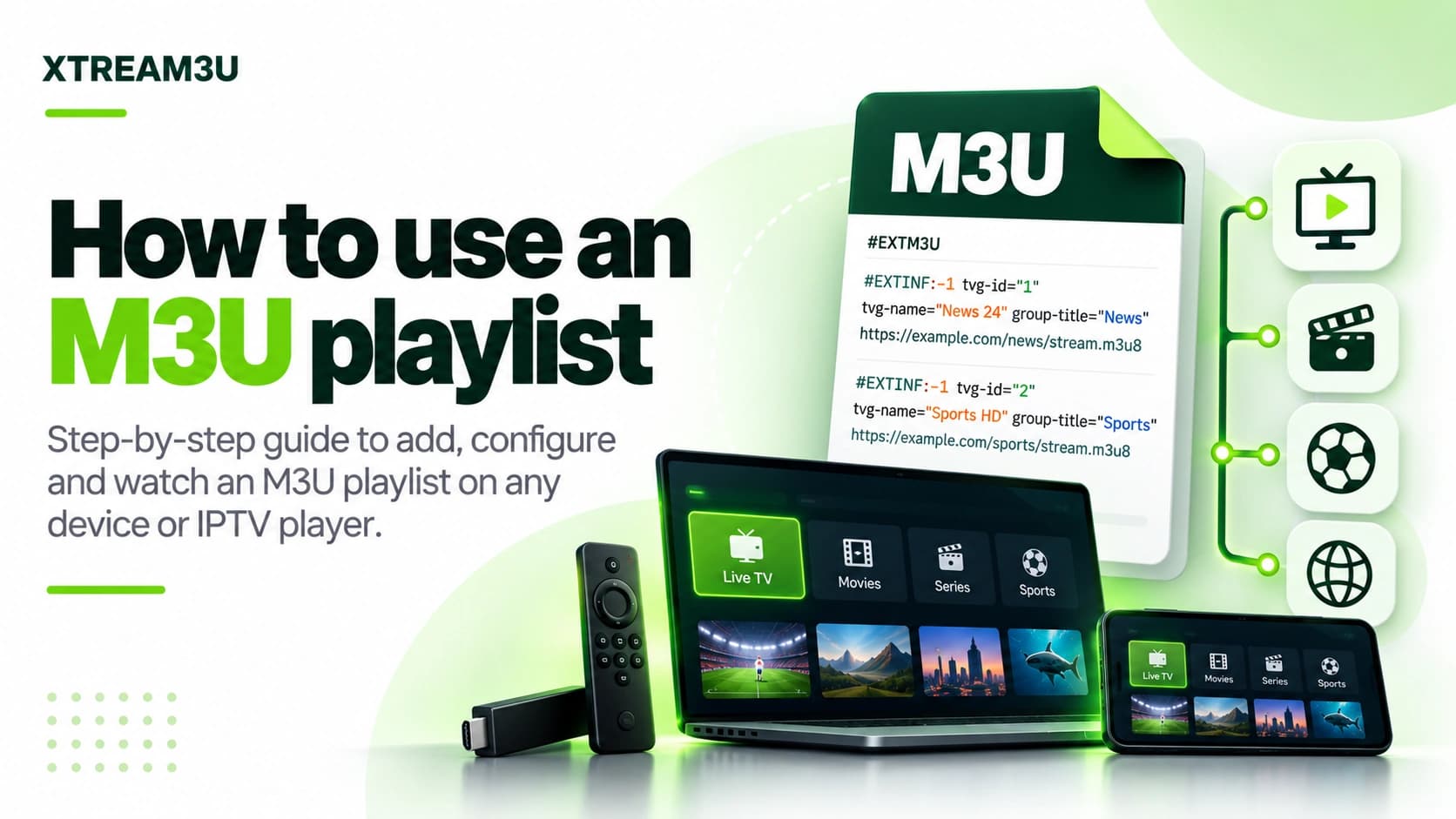
The whole job in five steps
Using an M3U playlist means: 1) get the playlist URL, 2) verify it returns M3U content (not a webpage), 3) add it to a compatible player via that player's M3U/playlist import, 4) optionally attach an EPG URL for guide data, 5) organize favorites and groups. The whole flow takes about ten minutes when the URL is valid. Most failures come from step 2, not the player.
If you haven't read it yet, what an M3U is explains the format this guide operates on. If something breaks midway, switch to M3U not working for the diagnosis order rather than guessing.
What you need before starting
- An M3U URL or file. A URL (starting with
http://orhttps://) is more convenient than a downloaded file because players can refresh it. If you only have a file, most players also offer file-upload import. - A compatible player installed on your device. VLC for quick desktop checks; a TV-oriented app such as TiviMate or OTT Navigator for Android TV/Firestick daily use. See M3U players for selection criteria.
- Optionally, an EPG/XMLTV URL from the same source for program guide data. Without it you get channels but no schedule.
- Five quiet minutes on a stable network. Import over VPNs, captive portals, or throttled connections produces misleading errors. Use a normal connection first, then reintroduce complexity.
Step 1 — Get a valid M3U URL
The single most common failure is pasting a webpage URL where the file URL belongs. A GitHub repository page, a link-shortener preview, or a provider dashboard page returns HTML; the player expects text starting with #EXTM3U. They look similar in a chat message and behave completely differently on import.
- Copy the URL the source designates as the playlist/M3U link (for GitHub-hosted lists this is the “Raw” file URL, not the repo page).
- Paste it into the IPTV test and run the check.
- Confirm three things: HTTP 200, the M3U-header check passes, and the entry count is above zero. All three must hold; any failure is a stop-and-fix signal, not a proceed-anyway situation.
- If the test reports HTML instead of M3U, go back to the source and get the direct file link. Do not paste the same URL into three players hoping one tolerates it. None will.
Token-bearing URLs deserve care: some providers embed expiring tokens in the query string. They work when fresh and die within hours. If your URL worked yesterday and fails today with no other change, re-export a fresh URL from the source before touching player settings. Never post such URLs publicly. Anyone who sees them gains your access.
Step 2 — Validate the format (two minutes that save twenty)
A reachable URL can still hold a broken file: a missing header, a byte-order mark before it, unpaired EXTINF records, or bare URLs. Desktop VLC tolerates most of this, which is exactly why “works in VLC, fails on TV” happens: strict TV parsers reject what VLC forgives.
- Paste the playlist text (or a failing excerpt) into the M3U validator.
- Fix header problems first: the file must begin with
#EXTM3U, no leading spaces, saved as UTF-8 without BOM. - Fix pairing: every
#EXTINFline needs its stream URL on the next non-comment line. The validator names exact line numbers. Work through them top-down. - For personal cleanup (renaming, regrouping, reordering), use the M3U editor rather than a rich-text editor that injects smart quotes. Edits stay in your browser and export as a clean file.
Step 3 — Add it to your player
Documented approach, version caveat: menu labels drift between app releases, so treat the paths below as patterns (playlist/add/import → M3U/URL) and confirm the exact labels in your installed version. The underlying action is identical everywhere: give the player the M3U URL and let it fetch and parse.
| Device | Pattern | Notes |
|---|---|---|
| VLC (Windows/Mac/Linux) | Media → Open Network Stream → paste URL → Play; playlist panel lists entries | Best for 60-second “does this URL resolve?” checks, not daily TV use |
| Android TV / Firestick apps | Add playlist → M3U/URL → paste link → optionally add EPG URL on the same screen | Type slowly or use a companion/phone-keyboard app; trailing spaces break logins silently |
| Smart TV native apps | Store app → playlist section → URL entry | Availability decides the shortlist: check the TV's store first; a stick often beats a weak native app |
| Phones / tablets | Same add-playlist flow; touch UI | Fine for testing; reserve TV apps for the couch |
After adding, wait for the full import. Large public lists take a minute, and interrupting it produces half-loaded bouquets that look like failures. If the app offers a playlist refresh versus remove and re-add, prefer re-adding when the first import was bad: refresh buttons in several apps do not clear a corrupt parse.
Device-specific setup differences: Firestick, Android TV, Google TV, Smart TV.
Step 4 — Attach EPG guide data (optional, recommended)
- Get the XMLTV/EPG URL from the same source as the playlist. Matching matters more than size.
- Verify it first with the EPG test: HTTP 200, XML-looking response, non-zero channel count.
- Enter it in the player's EPG/XMLTV field (separate from the playlist field; mixing the two up stalls some importers).
- Force a guide refresh and check a known news channel: guide data appears when the playlist's
tvg-idvalues align with the XMLTV's identifiers. Misaligned IDs yield “No information” despite a healthy EPG file. That is a matching issue, not a broken download.
Step 5 — Organize: groups, favorites, and upkeep
- Use groups, don't fight them: the playlist's
group-titlevalues become bouquets. Hide groups you never watch instead of deleting entries, since deletion complicates refreshes. - Build a favorites list immediately for the 10–20 channels you actually watch. Large public lists are unnavigable raw; favorites are the interface.
- Schedule refreshes sensibly: daily for volatile public lists, less for stable ones. Each refresh re-downloads the file, which is normal and cheap.
- Keep the source URL recorded outside the player (a note on your phone). When the list dies in six months, you will need the source, not a screenshot of channel names.
Step 6 — Verify on a second screen before match time
A setup that works on one device can still fail on the one that matters: the living-room TV, ten minutes before kickoff. Run this pre-flight check for anything time-sensitive:
- Open the same playlist on the actual viewing device, not just the laptop you set it up on. Parser strictness differs (see the VLC-vs-TV breakdown).
- Play three channels from three different groups, not just the first one. Single-channel success proves the import; multi-group success proves the list.
- Confirm the EPG shows data for a known news channel. Guide matching is per-identifier, so one correct channel implies the join works broadly.
- If anything fails, you now have hours, not minutes, to run the diagnosis order while the laptop setup still works as your reference.
Upkeep: refresh schedules and backup strategy
Public lists decay; provider lists rotate tokens. A setup without upkeep is a setup with an expiry date:
- Refresh cadence: daily auto-refresh for volatile public lists (sports-heavy), weekly for stable ones; each refresh re-downloads the file, which is normal and cheap. If your player hammered a source hourly, back off: aggressive loops trigger 429 rate limits that look like outages.
- Record the source, not screenshots: keep the playlist URL's origin (which collection, which variant file) in a phone note. When the list dies in six months, you need the source: channel-name screenshots don't regenerate URLs.
- Keep one fallback list: a second, independent source (e.g. the international index alongside a country file from the directory) means one dead source is an inconvenience, not a blackout.
- Re-export provider URLs periodically rather than storing them forever: token-bearing links go stale silently, and a quarterly re-export prevents surprise match-day failures.
Common mistakes
- Pasting the M3U into an Xtream-login form (or vice versa) means silent failure. Match the input type to what you hold; see M3U vs Xtream.
- Importing with the EPG field filled from the start. If the import hangs, retry with the playlist alone, then add EPG after success.
- Judging by one channel. A playlist can be perfectly valid while individual streams are offline. Test the list (structure) separately from streams (delivery).
- Editing on the TV. Rename and regroup on a computer with the editor, export, and re-import the clean file, because on-screen keyboards turn five-minute edits into forty-minute ones.
FAQ
Do I need an M3U file or is the URL enough? The URL is enough and preferable. The player fetches it directly and can refresh. Download the file only for local editing or offline backup.
Can one playlist work on multiple devices? Usually yes for plain public lists; connection-limited provider lines may cap simultaneous devices. Check the source's terms rather than discovering the limit mid-match.
Why does the same URL work on my laptop but not my TV? The usual trio: strict TV parser rejecting a BOM/missing header VLC forgives, a stale cached import on the TV, or the TV's network hitting a block the laptop's doesn't. Validate, remove-and-re-add, then compare networks.
Sources and further reading
- iptv-org/iptv repository: the public collection whose index, per-country, and per-category files this guide's URL advice refers to; its readme documents usage and its PLAYLISTS.md enumerates variants. Verified October 2026.
- iptv-org/epg repository: community XMLTV tooling behind the EPG step; documents per-site scrapers and scheduled guide generation. Verified October 2026.
- M3U playlist not working?: the diagnosis order to switch to when any step above fails.
Methodology note: setup patterns above describe documented player behavior and XTREAM3U tool flows. Playlist-specific claims (counts, availability) are never asserted without a timestamped check. Use the directory's status badges and last-checked times.